Shopping Campaign Getting No Impressions? Fixes
Why is my Google Shopping campaign not getting impressions?
Wait 24 to 48 hours for review, then check the Google Ads side (billing, dates, paused status, budget, targeting) and the Merchant Center side (disapproved products, suspension, unclaimed site, shipping, country and language, expired data). Product crawl failures such as 404 errors, robots.txt blocks and redirect loops disapprove items on both mobile and desktop until fixed.
When a Shopping campaign shows no impressions, there are two places to look and they rarely agree. Google Ads says the campaign is fine; Merchant Center says the products are the problem, or the other way round. Google’s troubleshooting page lists 20 common reasons across both. This guide orders them and adds the crawl errors that catch many stores. Sources were read on 25 November 2026.
How long is normal before impressions start?
Google says it takes 24 to 48 hours for newly created or edited ads, creatives, assets, products or data sources to be reviewed in Google Ads and Merchant Center. Initial reviews for programs such as Free Listings or Vehicle Ads can take several weeks. Changes to campaign settings also need time to settle. New campaigns or bid strategies may show a temporary Learning status for up to 7 days. Do not change anything for the first two days unless there is a clear error.
What should I check on the Google Ads side?
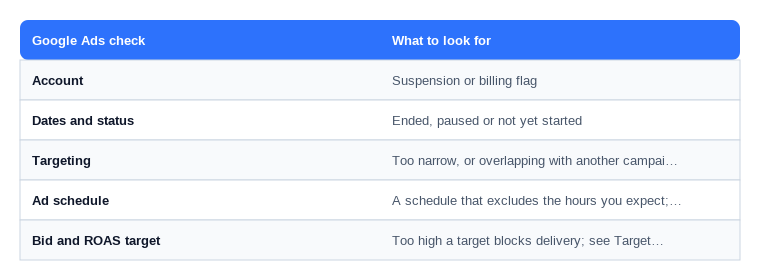
Google lists these first: account issues such as suspension or billing; campaign start and end dates; paused campaign, ad group or ad; targeting overlaps with other campaigns; targeting that is too narrow; ad schedule; bid limitations and optimisation goals; auction dynamics; and conversion tracking issues. Its recommendations include fixing Merchant Center suspension, adjusting ROAS targets or budgets, fixing not eligible products and using Maximize conversion value to ramp up traffic.
| Google Ads check | What to look for |
|---|---|
| Account | Suspension or billing flag |
| Dates and status | Ended, paused or not yet started |
| Targeting | Too narrow, or overlapping with another campaign |
| Ad schedule | A schedule that excludes the hours you expect; see ad scheduling |
| Bid and ROAS target | Too high a target blocks delivery; see Target CPA low traffic |
| Conversion tracking | Broken tracking can starve Smart Bidding |
What should I check in Merchant Center?
Google lists: products that are not eligible to serve; Merchant Center account issues such as suspension or account linking; an unclaimed Merchant Center account; shipping settings; the adult setting or attribute; the country and language targeted; expired product data; changes to product attributes in the data source; data exclusions; and changing user interest and seasonality. Its monitoring page adds a reminder that Shopping ads come from your product data, so price mismatches between your feed and landing page or incorrect availability can lead to disapprovals and significantly hurt performance.
Related: how to fix Merchant Center product disapprovals, how to verify and claim your store and shipping settings.
What are product crawl issues?
Google says it routinely crawls your mobile and desktop product pages and images; if it cannot, it cannot show your items in listings. If it detects crawling errors fetching either the mobile or the desktop landing page, it disapproves the item for both until it can access the page. Common causes:
- Page not found (404): the URL is wrong or broken.
- robots.txt blocks access: allow Googlebot for landing pages and Googlebot-image for images.
- Invalid URL: invalid characters or format.
- Authentication, 4xx or 5xx responses, hostname not resolvable: the server returns errors.
- Firewalls or geo-restrictions: Google says you must allow crawling from the US because it often operates from there.
- Network errors, timeouts or redirect loops: the server is slow or redirects too often.
Google says once you resolve the issue, it may take up to 48 hours for the product to reappear, and for some issues you can request a website check on the Product details page under Needs attention.
How do I confirm what is wrong?
- Open Merchant Center Diagnostics and filter by Needs attention.
- Check the Products page in Google Ads for products not serving.
- Open the campaign’s recommendations for issues Google already found.
- Test the product URL in a private window and via an HTTP check for status code and redirects.
- Compare feed price and availability with the page.
- Wait the stated review time before concluding.
Where does Bach.ai fit?
Bach.ai is our product. It audits connected Google Ads accounts, flags Shopping or Performance Max campaigns that are enabled but serving little, and with your store connected compares ad revenue with real orders. On an active paid plan it can apply a supported Google Ads change after you approve it, by default. It does not fix your feed or server.
FAQ
How long until a fixed product shows again?
Google says it may take up to 48 hours for a product to reappear after a crawl issue is resolved. A website check request can speed some reviews.
Why do both mobile and desktop get disapproved?
Google disapproves the item for both device types if it detects a crawling error fetching either landing page.
Does low traffic mean something is broken?
Not always. Google lists targets too tight, budgets and seasonality among normal causes. Check the recommendations before changing settings.
Do I need Google Ads to fix feed issues?
No. Feed issues are fixed in Merchant Center or your store platform. Google Ads only reflects them.
Sources
Sources, each opened and read on 25 Nov 2026: Google Help pages, How to fix Shopping campaign not running or low traffic; Product crawl issues; Monitor and optimize your Shopping campaigns. Menu names and limits change, so check the page before you act.