Google Ads Editor and Bulk Edits for Stores
How do I make bulk changes in Google Ads?
Use bulk edits in the web interface for quick changes across selected items, or Google Ads Editor, a free desktop app, to download accounts, edit offline, then upload. Preview results, and use Undo in Bulk actions to revert supported bulk changes, which creates a new bulk change rather than rolling back time.
A price drop across 400 products, a new tracking template for 60 campaigns, a pause on every Black Friday ad group: none of these should be done one row at a time. Google gives you three tools: bulk edits in the browser, Google Ads Editor and Undo. They are fast, which makes mistakes fast too. This guide covers when to use each and how to recover. Sources were read on 25 November 2026.
What are bulk edits?
Google says bulk editing allows you to make multiple changes in your account at the same time. Go to Campaigns and choose Campaigns, Ad groups, Ads, Assets, Search keywords, Locations or Ad schedule; for bid strategies open Tools, Budgets and bidding, Bid strategies. Select items with the checkboxes, click Edit and change attributes such as the bid strategy, bid, budget or match type across all selected items. A caveat: when you have filtered by a performance metric the number of items may not exactly match the number Google confirms afterwards, because the data changes quickly while edits process.
What is Google Ads Editor?
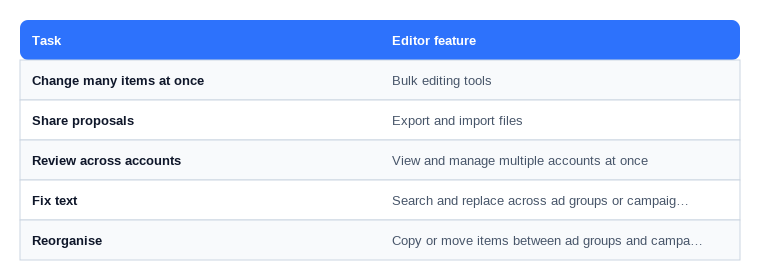
Google describes it as a free, downloadable application for managing your Google Ads campaigns: you download one or more accounts, make changes offline, then upload them. It can help save time with bulk changes and is especially useful for accounts with multiple campaigns and long lists of keywords or ads. Things you can do include:
| Task | Editor feature |
|---|---|
| Change many items at once | Bulk editing tools |
| Share proposals | Export and import files |
| Review across accounts | View and manage multiple accounts at once |
| Fix text | Search and replace across ad groups or campaigns |
| Reorganise | Copy or move items between ad groups and campaigns |
| Experiment safely | Make changes in draft before uploading; undo and redo while editing |
| Work anywhere | Keep working offline |
Google adds that you can still sign in and change your account at ads.google.com while using Editor, and that you should download recent changes first so Editor has the latest data.
What can Undo do?
Google says that for bulk edits, copy and paste, automated rules and bulk uploads you can sometimes revert changes using Undo, under Tools, Bulk actions. It creates a new bulk change that attempts to revert the changes made, processed and logged like any bulk change. Its example: if you make two consecutive bulk edits to budgets and undo the first, the budget reverts to the value before the first edit regardless of the second. If something can’t be reverted, such as deleted items, you receive an error, and if the Undo button is absent the action either can’t be reverted or has already been undone. Once you attempt an undo, the option is hidden.
How do I make bulk changes safely?
- Export the current state to a file before you change anything.
- Work in a draft where possible: Editor lets you preview changes before posting.
- Change one attribute at a time, for example budgets in one batch and match types in another.
- Apply to a small group first; check results after a day.
- Log what you changed, with the date, for later; see how to see who changed your campaign.
- Remember that mass changes to bid strategies or goals can trigger a Learning status; see Learning status.
When should a store use which?
Use bulk edits for a quick budget or status change on a few dozen rows. Use Editor for restructures, keyword and text clean-ups, large feed-driven changes or when several people need to review a proposal. If your store runs promotions often, set time limits with sitelink schedules and total budgets instead of editing; see sale sitelinks and countdowns and campaign total budgets. Performance Planner can export changes to an Editor file; see Performance Planner.
What are good bulk jobs for a store?
Pausing every ad group tied to a discontinued product line; applying a new final URL suffix to all campaigns; updating sale sitelinks and promotion assets across accounts; raising budgets on a list of campaigns before a sale and lowering them afterwards; and cleaning search terms by adding a shared list of negatives. Prepare each as a file or a filtered selection and check the count of items before you apply. Keep a copy of the original values so you can restore them if Undo is not available for that kind of change. For anything that touches bids or goals, make the change in one campaign first. The same discipline applies to tools that make changes for you: you should see what will change, approve it and have a log of what did.
Where does Bach.ai fit?
Bach.ai is our product. On an active paid plan it applies supported Google Ads changes only after you approve them, by default, and logs each one, which suits the same careful approach as above. It does not replace Editor for large structural work.
FAQ
Is Google Ads Editor free?
Google describes it as a free, downloadable application.
Can I undo any bulk change?
Only some. Google says Undo is for certain bulk changes, creates a new change and errors if something can’t be reverted, such as deleted items.
Can I use Editor and the web interface together?
Yes. Google says you can still sign in and change your account at ads.google.com; download recent changes to Editor first.
Does Editor work offline?
Yes. Google says you can keep working when you’re offline and upload afterwards.
Sources
Sources, each opened and read on 25 Nov 2026: Google Help pages, About Google Ads Editor; Make changes with bulk edits; Revert bulk actions with Undo. Menu names and limits change, so check the page before you act.