Verify and Claim Your Store in Merchant Center
How do I verify and claim my website in Merchant Center?
Verify your online store by your e-commerce platform, email, an HTML tag or file, Google Tag Manager or Google Analytics, then claim it so the URL belongs to your account. A single URL can be claimed by only one account. Many sites are verified automatically if Google already has the information, for example from Analytics.
Verification is the step many stores skip until a feature refuses to switch on. Google wants proof that you control the website your products point to, and claiming ties that site to one Merchant Center account. It takes minutes when done early and days when done mid-launch. This guide follows Google’s help pages, read on 25 November 2026.
What do verify and claim mean?
Google says verifying and claiming your online store is an important step when you set up your Merchant Center account, and that in most cases you only need to verify once. A single URL can be claimed by only one account; to let several accounts share claiming rights, a Multi-Client Account is needed, because sub-accounts inherit the claim from the parent account. Several features depend on it: automatic product submission requires you to verify and claim your store, and promotions require at least one claimed URL.
Which method should I use?
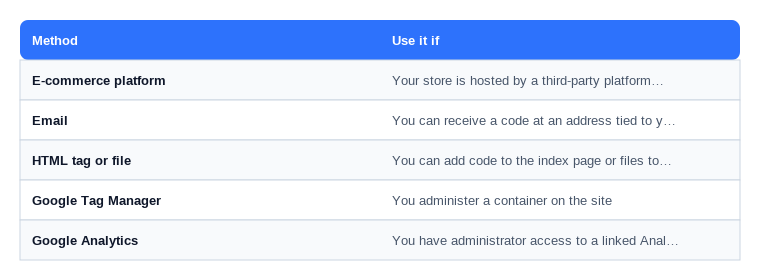
Google lists five ways: through your e-commerce platform, email verification, an HTML tag or file, Google Tag Manager, or Google Analytics. Its page tells you which fits:
| Method | Use it if |
|---|---|
| E-commerce platform | Your store is hosted by a third-party platform; check what it suggests |
| You can receive a code at an address tied to your store | |
| HTML tag or file | You can add code to the index page or files to the server |
| Google Tag Manager | You administer a container on the site |
| Google Analytics | You have administrator access to a linked Analytics account |
Google adds that the Analytics method might not work if you use a third-party platform such as Shopify, and for those accounts it recommends an HTML tag. If verification fails, you may also need to remove any www from the address.
What is automatic verification?
If Google already has the information it needs, for example because you use Google Analytics on your store, the site is verified automatically during account setup, and you see a notification after entering your address on the Business information page. You may also receive an email from Search Console saying Merchant Center has created an account for you, because Merchant Center verifies your site through Search Console. If it goes wrong, check that the correct store is linked to your other Google products.
How do I verify, step by step?
- Enter your store address on the Business information page and watch for an automatic verification message.
- Pick a method from the list above if there is none.
- Complete it: add the tag or file, enter the email code or approve through Tag Manager.
- Claim the URL so it belongs to this account.
- Check that the status shows verified and claimed, then continue with shipping and returns.
Why does claiming matter beyond verification?
Because Merchant Center ties features to a claimed URL. Google’s automatic product submission needs it, and the promotions add-on needs at least one claimed URL; see how to set up Merchant Center promotions. It also protects you: since a URL can be claimed by only one account, an agency or a former developer who claimed your site first can block you. If that happens, ask that party to release or share the claim; Google’s page on Multi-Client Accounts explains sharing.
What if I use an agency?
Agree who owns the Merchant Center account and put your own admin on it, and use a Multi-Client Account only when many sub-accounts need to share the claim. See Google Ads manager accounts for agencies for the Google Ads side and how to link Google Ads and Merchant Center.
What can go wrong during verification?
Typical problems: verifying a www address while the store lives on the bare domain, or the reverse; an HTML tag placed on one page that is not the index page; a Tag Manager container that is not published; a Google Analytics account you do not administer; and a freelancer’s account that claimed the site years ago. Check the exact address in the Business information page against the address customers use. If verification still fails, try another method, and confirm that you have the right access on the other Google product. If another account has already claimed the URL, you will need that account’s owner to release it or share it through a Multi-Client Account. Record in your account notes who owns the Merchant Center account and where the verification tag lives, so a theme change does not remove it unnoticed.
Where does Bach.ai fit?
Bach.ai is our product. It audits Google Ads accounts connected to Merchant Center and flags Shopping campaigns that cannot serve products. It does not verify your site, and on an active paid plan any supported Google Ads change waits for your approval, by default.
FAQ
How often do I need to verify?
Google says in most cases you only need to verify your online store once.
Can two accounts claim the same website?
No. A single URL can only be claimed by one account, unless a Multi-Client Account passes the claim to sub-accounts.
Why did Analytics verification fail on Shopify?
Google says the Analytics method might not work on third-party platforms such as Shopify, and recommends an HTML tag instead.
Do I need to verify to use free listings?
Google’s free listings eligibility list is about policies, shipping and return information; the setup is in how to get free product listings. Verifying and claiming is still the first account step.
Sources
Sources, each opened and read on 25 Nov 2026: Google Help pages, Verify and claim your online store; About automatic website verification; Add products automatically from your online store. Menu names and limits change, so check the page before you act.