Google Product Category vs Product Type
What is the difference between Google product category and product type?
Google product category is a predefined taxonomy Google assigns automatically, and you override it only in specific cases such as category-specific attribute rules, campaign targeting or alcohol. Product type is your own category path, optional, used to structure bidding and reporting in Shopping campaigns around your store's navigation.
Shopping feeds have more than one category field, and store owners often fill the wrong one and wonder why campaigns will not split. Google product category and product type sound interchangeable; Google treats them as different tools with different owners. This guide explains both, with Google’s Merchant Center and Google Ads pages, read on 25 November 2026.
What is Google product category?
Google says all products are automatically assigned a category from its continuously evolving product taxonomy, a categorization tree that sorts products from broad categories such as Electronics down to specific ones such as Electronics, Communications, Telephony, Mobile Phones. This lets its algorithms go beyond keyword matching and understand what a product is. Google says high-quality, on-topic titles and descriptions and accurate price, brand and GTIN information help products be categorised correctly; see how to write product titles and how to fix missing GTINs.
When does Google accept an override?
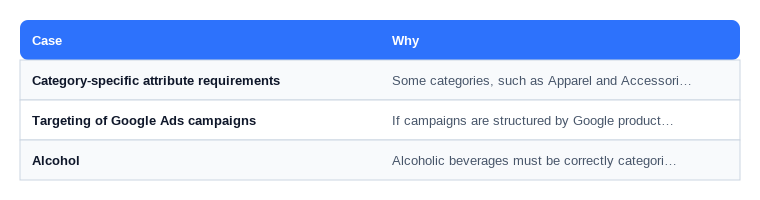
The attribute is optional, and Google accepts a category override only in specific cases:
| Case | Why |
|---|---|
| Category-specific attribute requirements | Some categories, such as Apparel and Accessories, Mobile Phones or Software, impose extra required fields; if Google assigns yours wrongly, override to remove those requirements |
| Targeting of Google Ads campaigns | If campaigns are structured by Google product category, reassign products within your campaign structure |
| Alcohol | Alcoholic beverages must be correctly categorised; override if the category is wrong |
You submit either the category ID or its full path, not both. Google also tells you to use current categories, since out-of-date values cause problems.
What is product type?
Google describes it as a way to include your own internal categorisation system in your product data, a key tool for structuring bidding and reporting in Google Ads Shopping campaigns. Unlike Google product category, it lets you define your own taxonomy to match your store’s navigation. It is optional for each product, and helps you organise Shopping ads campaigns, bidding and reporting around your business structure. A fashion store might use Women > Dresses > Midi, matching the site menu.
How do I use them together?
- Leave Google product category alone unless one of the three cases applies.
- Fill product type with your site hierarchy, using the same separators on every product.
- Add custom labels for business rules that change, such as margin tier or bestseller, because Google says you can have up to 5 labels, numbered 0 through 4.
- Build campaign product groups by product type for structure and by label for rules.
- Check Diagnostics for category-specific errors after changes.
What mistakes are common?
Putting your own category names into the Google product category field; leaving product type inconsistent across variants; using more than one hierarchy over time so reports split; and overriding a category to hide missing required attributes, which can later cause policy problems. If an apparel product is flagged for missing size or colour attributes, the fix is to provide them, not to move it out of Apparel unless the product is truly something else. See which attributes does apparel need.
How do I set this up in practice?
Export your product list and add a column for your own hierarchy, using the same separator on every row, such as a greater-than sign with spaces. Fill it from your store’s collections, so it matches how shoppers browse. Leave the Google product category blank unless your Diagnostics flags a wrong category, in which case look up the exact ID or path in Google’s taxonomy file and use only one of them. Re-import the feed and check a sample of products in Merchant Center to confirm both fields show as expected. In Google Ads, build a product group tree on product type for your main campaign, and use custom labels for margin and seasonality on top. Revisit after a catalogue change: new collections need new product type values or they fall into the everything else group.
How often should I review categories?
Google says its taxonomy continuously evolves and that you should avoid out-of-date values, so check your overrides at least twice a year and after any large catalogue import. Review product type whenever you add a collection, rename a menu or merge ranges. Keep a mapping sheet from your store’s collections to product type values, and from product types to any Google product category overrides, so changes are made in one place. If you see products repeatedly flagged for category-specific attributes, fix the data first, and only then consider an override.
Where does Bach.ai fit?
Bach.ai is our product. With a Shopify store connected it reads products and orders to show which categories earn revenue. It does not edit feeds. On an active paid plan any supported Google Ads change waits for your approval, by default.
FAQ
Do I have to fill Google product category?
No. It is optional, and Google assigns one automatically. Override only in the cases Google lists.
Is product type required?
No. Google lists it as optional. It is useful for structuring campaigns and reporting.
Can I use both?
Yes. They do different jobs: Google’s taxonomy for understanding, yours for organisation.
Can product type match my menu?
Yes. Google describes it as a way to match your store’s navigation.
Sources
Sources, each opened and read on 25 Nov 2026: Google Help pages, Google product category; Product type; Use custom labels for Shopping ads. Menu names and limits change, so check the page before you act.