How Do I Start Google Shopping Ads for My Store?
How do I start Google Shopping ads for my store?
Set up Google Merchant Center and Google Ads, link them, and send product data that meets Google's specification at least every 30 days. Then create a Shopping or Performance Max campaign that uses the linked feed. Google says Shopping ads follow their own policies, separate from standard Google Ads policies.
Google Shopping ads show a product photo, title, price and store name, and they run from your product feed, not from keywords you write. Starting them is mostly set-up: two accounts, one link and a clean feed. Everything here is from Google’s help pages on Shopping requirements, onboarding and linking, fetched on 25 November 2026. Menus change, so confirm on the linked pages.
What do I need before I can run Shopping ads?
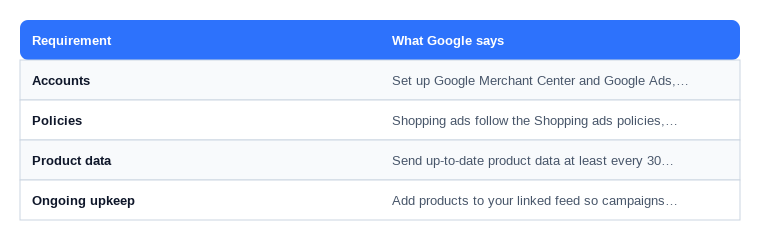
Google’s requirements page lists four things.
| Requirement | What Google says |
|---|---|
| Accounts | Set up Google Merchant Center and Google Ads, and link them together |
| Policies | Shopping ads follow the Shopping ads policies, which are different from the Google Ads policies |
| Product data | Send up-to-date product data at least every 30 days, meeting the product data specification |
| Ongoing upkeep | Add products to your linked feed so campaigns have relevant items to show |
Google’s onboarding page describes Shopping ads as showing a photo of your product, plus a title, price, store name and more, which gives users a sense of the product before they click. In countries in the Comparison Shopping Service program, such as parts of Europe, you take part through a CSS, so the set-up can differ.
How do I link Merchant Center and Google Ads?
Google says you must link the two accounts before you can create Shopping campaigns, and that after linking you can create a campaign that uses your product information. Before you begin, make sure neither account has account-level policy violations. Google also recommends turning on 2-Step Verification, and says that if it is required you must enable it or disable the requirement before linking. You can link from Merchant Center, or from Google Ads under Tools, then Data manager, then Google Merchant Center. Follow the current steps on Google’s linking page.
- Create or sign in to your Merchant Center account and add your store and products.
- Check that both accounts have no account-level policy violations.
- Start the link from Merchant Center, or from Google Ads under Data manager.
- Approve the link request on the other account if prompted.
- Create the campaign in Google Ads and choose the linked Merchant Center account.
Where do feed problems show up?
Product disapprovals reduce what you can advertise, so fix them before you build campaigns; our checklist is How do I fix Merchant Center product disapprovals?. If products on your store do not match what Meta shows, that is a separate sync issue: Why are my Shopify products not syncing to Meta?.
Should I use Shopping or Performance Max?
Google’s requirements page says the same Merchant Center feed requirements apply if you set up a Performance Max campaign with a feed or a Shopping campaign, and notes that to run both you make additions or changes in both. Which one earns more depends on your catalog and margin. Our comparison is Performance Max vs Search campaigns for e-commerce, and for the bid strategy question see Target ROAS vs Maximize conversion value.
How do I know it is working?
Check three things in the first weeks: products are approved in Merchant Center, the campaign shows impressions on those products, and orders recorded in your store match the conversions Google reports. For the last, read Shopify and Google Ads conversions differ: why. Our general advice on splitting spend with Meta is in How should I split budget between Meta and Google Ads?.
What mistakes delay a Shopping launch?
The usual ones are on the account side, not the ad side. Linking while either account has an account-level policy violation, because Google asks you to check for that first. Letting the feed go stale past the 30-day requirement, so products stop being current. Assuming Google Ads policies cover the feed when Shopping ads have their own policies. And forgetting that the linked Merchant Center account cannot be swapped in a campaign once created, so choose the right account before you publish. Keep a short checklist of the account, the link, the feed date and the policy status, and review it before each budget increase.
Bach.ai is our product. Its Shopify connection (from Starter) is read-only and compares ad-reported revenue with your real store orders, so you can see whether Shopping conversions match the store. On a paid plan a supported change is applied on Meta or Google Ads only after you approve it by default (Auto-Pilot is opt-in); the free trial does not apply changes, and recoverable-spend figures are estimates, not guarantees. For a hands-on review, use the Meta Ads audit checklist.
FAQ
Do I need a Merchant Center account?
Yes. Google says you must link Google Ads with Merchant Center before you can create Shopping campaigns, because the feed supplies your product information.
How often must I update my product data?
Google’s requirements page says to send up-to-date product data at least every 30 days that meets its data quality standards.
Are Shopping ads policies the same as normal ads?
No. Google says your content for Shopping ads must comply with the Shopping ads policies, which are different from the Google Ads policies.
Can I run Shopping and Performance Max together?
Google’s page says that to run both you make changes in both campaigns. Plan for overlap and review it.
Sources, read on 25 November 2026: Requirements for Shopping ads; Onboarding guide for Shopping ads; Link a Google Ads account to Merchant Center.