What Is Meta Ads Data Advisor?
What is Meta Ads Data Advisor, the successor to Pixel Helper?
Meta Ads Data Advisor is a free browser extension for Chrome and Edge, formerly called Meta Pixel Helper. It checks that a pixel and its events fire correctly and flags issues such as missing parameters. It can also automate pixel, Conversions API, CRM and catalog setup, pausing for your consent.
Meta’s documentation page for the Meta Pixel Helper now describes Meta Ads Data Advisor. Meta says the extension updates automatically, keeps its diagnostic features, and adds setup and monitoring jobs. This guide explains what changed, how to install and use it for a basic pixel check, what its status labels mean, and where it falls short and Events Manager takes over.
What is Meta Ads Data Advisor?
Meta’s support page describes it as a free browser extension for Google Chrome and Microsoft Edge that helps you automatically connect your website and other data to Meta, monitor your setup for issues and fix them after you confirm. It was formerly called Meta Pixel Helper, and if you had the old extension it updates to Data Advisor automatically, with all existing diagnostic features still working.
A badge on the toolbar icon shows a dot or a number for the Meta pixel events fired on the current page. No badge means no Meta pixels are installed on the page. Click the icon to open a side panel with the information you need to verify, troubleshoot and improve the pixel.
What can Data Advisor do?
Meta lists three groups of capability. In setup and connection it can set up the pixel and Conversions API together through Google Tag Manager, connect a Shopify store or WooCommerce site, integrate Salesforce or HubSpot CRM data, connect product catalogs for Advantage+ catalog ads and configure advanced matching. In diagnostics it can verify pixel and Conversions API installation, flag broken events and missing parameters such as content_ids, value and currency, and recommend and apply fixes after you confirm. In reporting it keeps a summary of every action, event-level detail and catalog-level detail.
Meta says every automated action produces a summary report with screenshots, and that an automation pauses only for your consent or required input.
How do I install and use it?
- Use Google Chrome or Microsoft Edge.
- Add Meta Ads Data Advisor from the Chrome Web Store or the Edge Add-ons store, and review the permissions it asks for.
- Optionally log in with your Facebook profile to unlock personalized recommendations and automated setup flows. Basic detection and troubleshooting work while logged out.
- Disable your ad blocker for the site you are testing, so the extension can detect pixels and events.
- Open your website and click the Data Advisor icon to see which pixels were found and whether they loaded.
- Perform the action you want to test, such as adding an item to the cart for AddToCart.
- Select the pixel and confirm the expected event appears as successful, then apply any suggested fix for errors or warnings.
For setup and automation features you additionally need a Facebook profile, admin access to your Meta ad account, and access to the platform you connect, such as a Google Tag Manager admin account, Shopify admin access or Salesforce or HubSpot admin access. Tip from Meta: Show all events lists events across your active browser session, which helps with multi-page funnels.
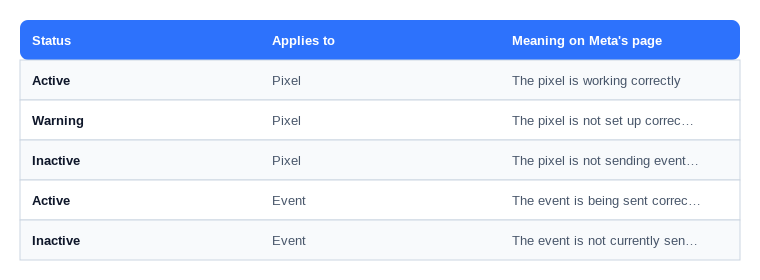
What do the statuses mean?
| Status | Applies to | Meaning on Meta’s page |
|---|---|---|
| Active | Pixel | The pixel is working correctly |
| Warning | Pixel | The pixel is not set up correctly |
| Inactive | Pixel | The pixel is not sending events correctly |
| Active | Event | The event is being sent correctly |
| Inactive | Event | The event is not currently sending data |
| Warning | Event | One or more issues with the event signal may affect performance |
| Error | Event | A critical configuration issue, such as blocked parameters, duplicate events or a compliance violation |
| Auto-detected | Event | Detected from website activity without additional code |
Meta notes a pixel can show Active even when individual events have warnings, and can show Warning even though events are being sent. Click into the pixel to see per-event detail.
What are the common setup errors it points to?
Meta’s get-started guide highly recommends installing the extension because it gives valuable feedback for verifying the pixel works, especially once you start tracking conversions, where formatting errors are easy to make.
Meta lists: duplicated pixel code on one page, pixel code placed on pages where tracking is not necessary, a tag manager or iframe blocked by browser settings or privacy tools, base code not placed in the <head>, and more than one conversion event per page unless extra events fire on specific user actions such as button clicks. Its quick checklist adds that standard events should load after the base code and that events should be visible in the Test Events tool.
When should I use Events Manager instead?
Meta says custom conversions and some advanced event types may not appear in Data Advisor but can still be sent, and button-click events may not be detected depending on your site setup. User-triggered events may not be reliably detected unless they reload the page or trigger a direct pixel call. For comprehensive tracking detail, use the Test Events tool in Events Manager. Meta’s implementation guide adds that Data Advisor expects to track only on-load events, and that tying events to elements such as a button lets you track more event types. Server events do not run in the browser, so verify them with the steps in how to check your Conversions API events are arriving.
What changed for automatic events?
Meta says that from 3 August 2026, when you set up a new pixel through Data Advisor, the option to automatically detect and add standard events is pre-selected. You can deselect it before finishing, and manage or turn off the feature later in Events Manager under Settings, Track events automatically without code. Review that choice if you want events configured by hand, as in what the standard events and parameters are.
Where does Bach.ai fit?
Bach.ai is our product. It audits Meta and Google Ads accounts and checks tracking and signal health, including pixel and Conversions API event coverage and deduplication. It is not a browser extension and does not install your pixel, and findings are estimates, not guarantees. On a paid plan a supported change is applied only after you approve it by default. See the Meta pixel and Conversions API guide and the pixel and CAPI signal-health audit.
FAQ
Is Meta Pixel Helper still available?
Meta says Pixel Helper automatically updates to Meta Ads Data Advisor, and a previously deactivated copy shows up under the new name in your extensions list, where you can toggle it back on and accept the updated permissions.
Do I need to log in to use it?
No for the basics. Meta says you can use the extension without logging in, and basic pixel detection and troubleshooting work while logged out. Setup and automation features need a Facebook profile and the access listed above.
Why does it show no events on my site?
Meta’s checklist points to a disabled ad blocker, base code in the head of every page you intend to track, no duplicated pixel code, and events firing after the base code.
Does it work in other browsers?
Meta’s page names Google Chrome and Microsoft Edge. It adds that some non-English languages are not yet supported in the Edge version, so use Chrome for a localized experience.
Sources, read on 25 November 2026: Meta Ads Data Advisor; Meta pixel get started; Meta pixel implementation: Marketing API.