How Do I Sync Shopify Products to Google?
How do I sync Shopify products to Google Merchant Center?
Install the Google & YouTube channel from the Shopify App Store, connect your Google account and Merchant Center, and Shopify syncs the products available to your online store. Add the required product data such as GTIN, or MPN and brand. Initial syncing can take up to 24 hours.
Google Shopping and Performance Max for a store both run from a Merchant Center product feed, and on Shopify that feed comes from the Google & YouTube channel. This guide follows Shopify’s help pages on connecting, syncing and requirements, read on 25 November 2026. Google controls Merchant Center requirements, so confirm product-data rules there as well.
How do I connect the channel?
Shopify says you install the Google & YouTube channel from the Shopify App Store and then connect your Google Merchant Center account, Google Ads account and Google Analytics. You choose which to connect: if you only want Google Ads and Google Analytics you do not need Merchant Center. The steps start at Sales channels, then Google & YouTube, then Connect Google Account, where you select or create a Google account and allow Shopify access. Merchant Center is connected in a separate step, and the channel syncs your products after that.
Shopify warns that if you already have a product feed set up in Merchant Center, it is overwritten to avoid conflicts between your store and your account. Do not connect a store that should not own the feed.
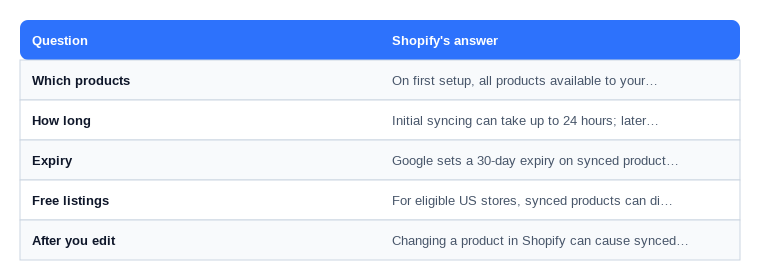
What gets synced, and how fast?
| Question | Shopify’s answer |
|---|---|
| Which products | On first setup, all products available to your online store sync automatically; you can change availability per product or in bulk |
| How long | Initial syncing can take up to 24 hours; later changes typically sync within a few hours |
| Expiry | Google sets a 30-day expiry on synced product data, so the channel updates products within that period |
| Free listings | For eligible US stores, synced products can display in Google Shopping tab listings for free |
| After you edit | Changing a product in Shopify can cause synced products to show errors and warnings |
What product data must I add?
Shopify says some data Google needs is not in the product details and must be added in the Google & YouTube channel. If a product has a GTIN you need to add it before you can publish the product; for products without one, add an MPN and brand in the channel’s product data. Shopify also says that starting 31 January 2027 Google requires product images to be at least 500 x 500 pixels in all product categories. Missing data blocks the sync, and errors show under the channel.
What about shipping?
Shopify says only shipping rates in your General shipping profile sync to Merchant Center, and that if you use custom shipping profiles the rates will sync incorrectly and cause errors. It also says businesses in certain countries must include shipping cost on ads and free listings, and offers without shipping information are disapproved. Set up shipping before you turn on ads.
What do I do when products show errors?
- Open Sales channels, then Google & YouTube, and read the product status.
- Fix the field named in the error, usually GTIN or MPN, brand, description or image.
- Check shipping profiles, since custom profiles do not sync.
- Wait for the next sync, up to a few hours.
- For Merchant Center disapprovals, follow How do I fix Merchant Center product disapprovals?.
If your products are not reaching Meta instead, the cause list differs: Why are my Shopify products not syncing to Meta?. Once the feed is clean, the next step is How do I start Google Shopping ads for my store?.
Should I check the feed against my store?
Yes. A feed that is accepted is not necessarily correct: prices, availability and titles in Merchant Center should match the live product page. Compare a handful of best sellers weekly. When you compare ad revenue with store revenue, see Shopify and Google Ads conversions differ: why.
How do I keep the feed healthy after launch?
Treat the feed as a live system. Shopify warns that changing a product’s information in Shopify can cause successfully synced products to show errors and warnings, so check the Google & YouTube channel after any bulk edit, price change or collection restructure. Because Google expires synced data after 30 days, a channel that silently stops updating can lose products from ads. Put a weekly reminder in your calendar to open the channel, read the status counts and spot-check three best sellers against the live product page for price, availability and image. If a launch adds many new variants, remember Shopify’s note that the number of variants Google lets you sync depends on your account type.
Bach.ai is our product. Shopify’s connection in Bach.ai is read-only (from Starter): it reads orders, revenue, products, inventory and abandoned checkouts to compare ad-reported revenue with real store orders, and never changes your store. It does not manage your Merchant Center feed, and recoverable-spend figures are estimates, not guarantees. On a paid plan a supported Google Ads change is applied only after you approve it by default (Auto-Pilot is opt-in); the free trial does not apply changes.
FAQ
Do I need Google Ads to sync products?
No. Shopify says you choose which Google products to connect, and Merchant Center is separate from Google Ads.
How long does the first sync take?
Shopify says initial syncing can take up to 24 hours, and later changes typically sync within a few hours.
Why did my existing feed disappear?
Shopify says an existing Merchant Center product feed is overwritten when the channel connects, to avoid conflicts.
Why are my shipping rates wrong in Merchant Center?
Shopify says only the General shipping profile syncs. Custom profiles sync incorrectly and cause errors.
Sources, read on 25 November 2026: Syncing products to Google; Google & YouTube channel requirements; Connect Google products to Shopify.