How Do I Build Customer Segments in Shopify?
How do I build customer segments in Shopify?
Open Customers, use the segment editor or Create segment, and combine filter names, operators and values in the ShopifyQL WHERE clause, for example amount spent over a figure and email subscription status. Segments update automatically, and you can start from a template or an existing segment.
Good ad audiences start with knowing who your best customers are. Shopify can answer that with segments: rule-based lists of customers that update themselves. This guide uses Shopify’s pages on creating segments, the segment reference guide and its filter components, read on 25 November 2026. Filters change, so check your admin.
What is a customer segment?
Shopify says you can group customers who have similar characteristics into a customer segment, building your own by combining filter names, operators and values in the editor on the Customers page, or from Create segment on the Segments page. The admin also includes default segments and templates you can change or use as a starting point.
How is the query structured?
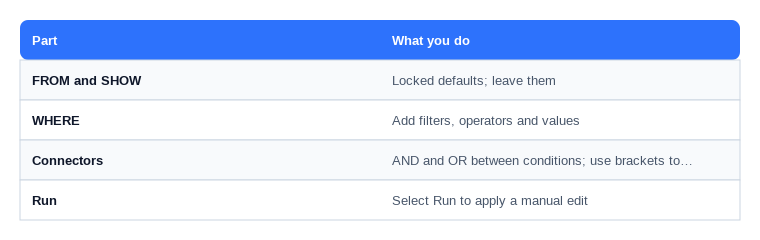
Every segment is a ShopifyQL query with required FROM and SHOW clauses that you cannot edit; you customize the WHERE clause. The default query format is FROM customers, SHOW (name, note, subscription status, location, orders and amount spent), WHERE your filters, ORDER BY updated_at. Changes to filters show in the WHERE clause in real time, and after editing the query by hand you select Run to update the segment.
| Part | What you do |
|---|---|
| FROM and SHOW | Locked defaults; leave them |
| WHERE | Add filters, operators and values |
| Connectors | AND and OR between conditions; use brackets to control order |
| Run | Select Run to apply a manual edit |
Which filters matter for marketing?
Shopify’s reference lists filters such as amount spent, customer tags, email subscription status, SMS subscription status, number of orders, products purchased, abandoned checkout date, predicted spend tier and RFM group. RFM groups listed include Champions, Loyal, Promising, Active, New, Prospects, Needs attention, Almost lost and Previously loyal. A filter combines a filter name, an operator and a value: for example email_subscription_status selects customers who subscribe to marketing emails. Shopify’s example shows brackets: (amount_spent > 100 OR number_of_orders >= 5) AND email_subscription_status = ‘SUBSCRIBED’ selects subscribers in either group, and without brackets AND is applied before OR, which changes the result.
How do I create a useful segment?
- Open Customers and use the segment editor, or choose Create segment on the Segments page.
- Start from a template or an existing segment, or write a new WHERE clause.
- Add a spend or order filter, such as customers with several orders.
- Add a subscription filter for any email or SMS use, since marketing needs consent.
- Click Run, check the count and the preview rows.
- Save the segment with a clear name.
How does this help my ads?
A segment tells you who to upload or exclude. Export or use it for emails, then build the ad audience from the same group: How do I create a customer list audience on Meta? and How should I format a customer list for Meta?. Use your best customers, defined by spend, as the seed for lookalikes, as in How do I build a value-based lookalike audience?. Exclude recent purchasers from prospecting with suppression audiences. Only upload customers you have a lawful basis to use.
What can go wrong?
Shopify warns that the segment editor is separate from the search bar on the Customers page, so a search such as orders_count:0 filters the list on its own and is not combined with a segment; check whether your list is filtered by a segment or by a search before running a bulk action such as delete. It also says suggested values come from your store’s data, and a filter with no data may be missing from suggestions; typing it manually can return an Invalid expression error instead of an empty result.
Which segments are worth building first?
Three cover most stores. Best customers: amount spent above your own threshold or several orders, ideal as a lookalike seed and as an upsell list. Lapsed customers: those whose last order is old, for win-back emails and ads; check the date filters in Shopify’s reference. Subscribers who never bought: email subscribers with zero orders, who get a first-order offer. Name segments plainly, record the filter values you used, and revisit them each quarter, since a threshold set for last year’s prices may no longer separate your best customers. When you use a segment for ads, upload it fresh rather than reusing an old file, because Meta marks customer lists older than 30 days as outdated.
Bach.ai is our product. Shopify’s connection in Bach.ai is read-only (from Starter): it reads orders, revenue, products, inventory and abandoned checkouts to compare ad-reported revenue with real store orders, and never changes your store. It does not build your segments, and recoverable-spend figures are estimates, not guarantees. On a paid plan a supported ad change is applied only after you approve it by default (Auto-Pilot is opt-in); the free trial does not apply changes. See the Meta Ads audit checklist.
FAQ
Do segments update automatically?
Shopify describes segments as rule-based lists; they update as customers meet or stop meeting the filters.
Can I edit FROM and SHOW?
No. Shopify says those clauses are locked at their defaults.
Why does my segment return an error?
If the filter has no matching data in your store, typing it manually can return an Invalid expression error.
Is the Customers search the same as a segment?
No. Shopify says the segment editor and the search bar do not work together.
Sources, read on 25 November 2026: Creating customer segments; Customer segment reference guide; Customer segment components.