How to Pause the Meta Pixel Until Consent
How do I pause the Meta pixel until a visitor gives consent?
Call fbq('consent', 'revoke') before fbq('init') to stop pixel fires from reaching Meta, then call fbq('consent', 'grant') once the visitor agrees. Meta says to call revoke on every page. Meta also says each business is responsible for its own GDPR compliance, so confirm your legal basis separately.
Whether your pixel needs consent is a legal question, and Meta’s developer page does not answer it for you. What the page does give is a switch: a consent API that holds pixel fires until your banner records a yes. This guide covers what Meta says about responsibility, how to use the switch, and what the pixel actually sends so your banner text can be accurate. It is a technical walkthrough, not legal advice.
Does the Meta pixel need cookie consent?
Meta’s GDPR page says the GDPR creates consistent data protection rules across Europe, and that it applies to companies, regardless of where they are based, that process personal data about individuals in the EU. It adds that businesses advertising with Meta can continue to use its platforms in the same way, and that each company is responsible for ensuring its own compliance with the GDPR.
So the page does not say that every site must block the pixel until consent, and it does not say that none must. It says businesses may want to implement code that creates a banner and requires affirmative consent, such as an “I agree” checkbox at the top of the page, before using the pixel. The advanced topics page likewise points businesses that operate in GDPR countries to that document. Whether you must block the pixel is for your counsel to decide for your markets.
How do I pause and release the pixel?
Meta gives an API to pause sending pixel fires to Meta, and to send them once cookie consent is granted. The two calls are:
fbq('consent', 'revoke');
fbq('consent', 'grant');
Meta’s example revokes consent before init is called, then runs fbq('init', '<your pixel ID>') and fbq('track', 'PageView'), and calls grant once affirmative consent has been given. The page says you need to call revoke on every page.
- Place
fbq('consent', 'revoke')in the base code, before theinitcall, on every page. - Keep
fbq('init')and your standard event calls as normal. - Show your consent banner or let your tag manager or consent tool handle it. Meta says that if you already have a system that addresses this need, such as a tag manager, you can make the banner code optional.
- When the visitor gives affirmative consent, call
fbq('consent', 'grant'). - Reload a page, deny consent, and confirm in the Meta Ads Data Advisor extension or Test Events that no event is sent.
- Accept consent and confirm that events now arrive.
Meta’s page does not describe how to remember a visitor’s choice. Because revoke runs on every page, your consent tool needs to call grant on later pages when the stored answer is yes.
What data does the pixel receive?
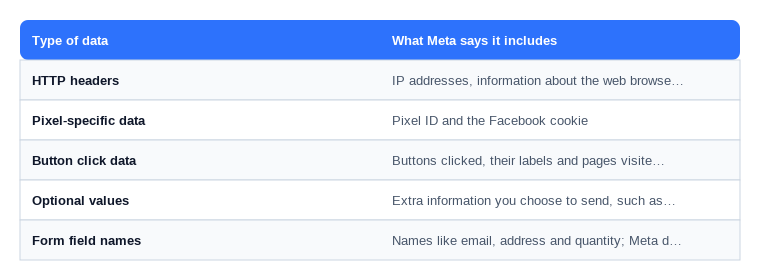
Your banner should describe what is collected. Meta’s page lists five types:
| Type of data | What Meta says it includes |
|---|---|
| HTTP headers | IP addresses, information about the web browser, page location, document, referrer and the person using the website |
| Pixel-specific data | Pixel ID and the Facebook cookie |
| Button click data | Buttons clicked, their labels and pages visited as a result |
| Optional values | Extra information you choose to send, such as conversion value and page type |
| Form field names | Names like email, address and quantity; Meta does not capture field values unless you include them as part of Advanced Matching or conversion tracking |
That last row matters if you use advanced matching: sending hashed email is a choice you make, so your consent text should cover it.
How do I see what consent controls did?
In Events Manager, the pixel’s Overview page shows the number of events Meta received before they are deduplicated, discarded due to consent controls and other policies, or processed. If you paused the pixel and run the Conversions API alongside it, check that your server events follow the same consent decision: the pixel API shown above governs pixel fires, and your server code needs its own rule. For the verification steps see how to check your Conversions API events are arriving. For how consent gaps affect reported results, read modeled conversions and the Meta consent gap.
Where does Bach.ai fit?
Bach.ai is our product. It audits Meta and Google Ads accounts and checks tracking and signal health, including pixel and Conversions API event coverage. It does not provide legal advice, run your consent banner or set the pixel’s consent state, and findings are estimates, not guarantees. On a paid plan a supported change is applied only after you approve it by default. See the Meta pixel and Conversions API guide.
FAQ
Does Meta require a consent banner?
Meta’s page does not say so. It says businesses may want to implement a banner with affirmative consent and that each company is responsible for its own GDPR compliance. Ask your legal adviser what applies to your markets.
Where do the revoke and grant calls go?
Revoke goes before init in the pixel base code, and Meta says it must be called on every page. Grant is called after the visitor gives affirmative consent, for example from your banner or tag manager.
Does revoking consent also stop the Conversions API?
Meta’s page describes the calls as pausing pixel fires only. Server events are sent by your own code, so give it the same consent check. Treat that as your responsibility to build and test.
Can the pixel collect form values?
Meta says it captures form field names such as email or address, and does not capture field values unless you include them as part of Advanced Matching or conversion tracking.
Sources, read on 25 November 2026: Meta pixel and the GDPR; Meta pixel advanced topics; Verifying your Conversions API setup; Meta Ads Data Advisor.